
Disclosure: This post may contain affiliate links, including Amazon links. As an Amazon Associate I earn from qualifying purchases. Commissions may be earned at no extra cost to you. Content is for informational purposes only and not professional advice.
Editor's Update, July 2026: Google renamed NotebookLM to Gemini Notebook on July 16, 2026. It's the same tool with the same features under a new name, so every "NotebookLM" reference below still applies. Google has also released Gemini 3.1 Pro as its current flagship model, succeeding the Gemini 3 Pro referenced here.
If you run your business alone, you have probably built the same prompt from scratch more than once: the same brand voice instructions, the same pricing details, the same disclaimers, typed out again every time you open a chat window. Gemini Gems and NotebookLM solve that specific problem. Together, they let you build a custom AI assistant that remembers your rules and answers from your own documents instead of guessing.
5-Minute Version
- A Gemini Gem is a saved assistant: a name, instructions, an optional default tool, and optional knowledge files, reusable across every chat.
- NotebookLM is a separate, free research tool that answers only from documents you upload, and a notebook can now be attached directly to a Gem as its knowledge source.
- Gems and basic NotebookLM use are free on any Google account. Larger notebooks, higher usage limits, and full Workspace Studio automation require a paid plan.
- Workspace Studio, Google’s no-code automation layer for Gmail, Sheets, and Drive, is not available on a personal @gmail.com account. It requires a Google Workspace Business or Enterprise plan.
- Expect 20 to 30 minutes to build a working Gem connected to a notebook. Budget closer to a half day if you also want an automated workflow through Workspace Studio, since that requires admin setup and testing before you trust it with anything customer-facing.
Context for Small Business Owners
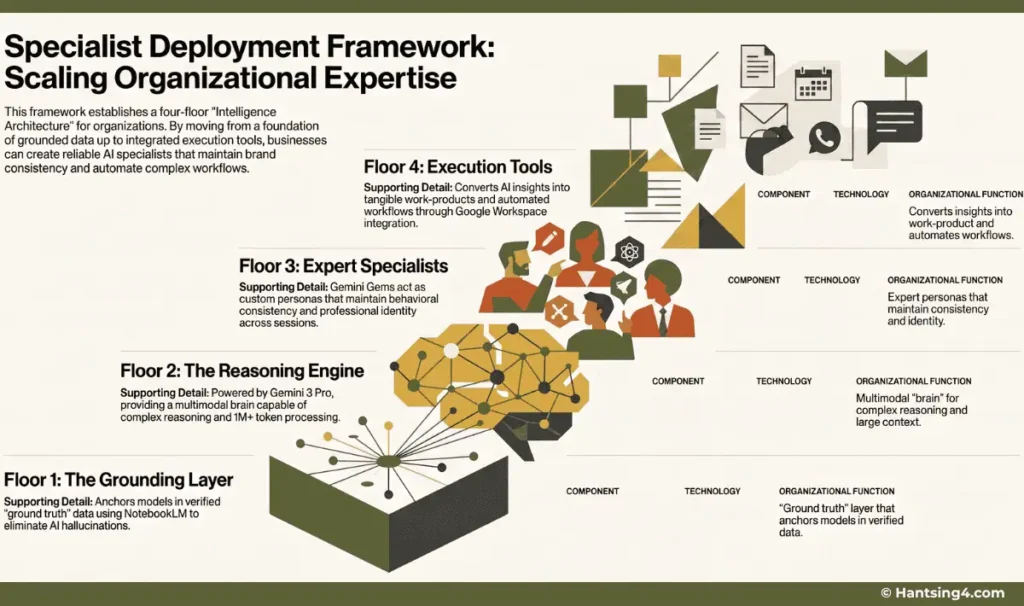
The Gemini ecosystem follows a four-layer architecture: grounding, reasoning, specialization, and execution. NotebookLM handles grounding by anchoring answers in your uploaded documents. Gemini Gems handle specialization by remembering your tone, rules, and brand identity. Gemini 3 Pro handles reasoning for complex tasks. Workspace Studio handles execution by automating multi-step workflows across Gmail, Docs, Sheets, and Drive. Even as a solo operator, understanding these layers helps you avoid “machine fog,” where AI produces confident but unverified answers.
The following table defines the strategic tiers of the Gemini ecosystem as of its most recent architectural evolution.
The Four-Floor Intelligence Hierarchy
| Level | Component | Technology | Organizational Function |
|---|---|---|---|
| Floor 4: Tools (Execution) | Workspace Integration | Gemini for Workspace / Workspace Studio | Converts insights into tangible work-product (Gmail, Docs, Sheets) and automates workflows. |
| Floor 3: Specialists | Gemini Gems | Custom Gems | Expert personas that maintain behavioral consistency, tone, and identity across sessions. |
| Floor 2: Frontier Model | Reasoning Engine | Gemini 3 Pro (Launched Nov 18, 2025) | The multimodal “brain” capable of complex reasoning and processing 1M+ token contexts. |
| Floor 1: Grounding | Knowledge Vault | NotebookLM | The “ground truth” layer that eliminates hallucinations by anchoring models in verified data. |
This tiered approach ensures that AI deployment is not fragmented. By layering specialists on a foundation of verified data, the system preserves institutional recall and allows the model to understand not just a single data point, but the entire “harvesting season” of an organization’s history. This architecture is the prerequisite for the next critical step: establishing a non-negotiable grounding layer.
How Does NotebookLM Create a Reliable Ground Truth?
Grounding is the bedrock of professional AI. Without it, organizations suffer from “artificial incompetence,” where models produce logically sound but factually untethered results.
NotebookLM is Google’s document-grounded research tool. You upload PDFs, Google Docs, web pages, or YouTube transcripts, and it answers questions using only that material, citing which source each answer came from. A single notebook can now hold up to 300 sources, a meaningful jump from the 50-source limit it shipped with originally. Once a notebook is attached to a Gem as a knowledge source, the Gem’s answers stay grounded in that material every time it is used, and updates to the underlying documents flow through automatically without a manual re-upload.
The guardrail that matters most here: grounding reduces invented details, it does not eliminate them. NotebookLM is built to stay inside your uploaded sources, but it can still misread a document or summarize it imprecisely, particularly with dense technical files or scanned PDFs with poor text extraction. Treat any output that will go to a client or into a contract as a first draft that still needs a human read-through, not a finished answer.
Focus Mode vs Diffused Mode
NotebookLM supports two modes of learning:
Focus Mode: active investigation where you ask questions and follow citations.
Diffused Mode: passive review using Audio Overviews during commutes or breaks.
This grounded vault provides the primary data feed for the specialized agents, ensuring they never operate from a position of ignorance.
What Is a Gemini Gem and How Does It Work?
A Gemini Gem is a saved configuration inside Gemini: a name, a description, written instructions, an optional default tool, and optional knowledge files, bundled into one reusable assistant you can open with a click. Instead of writing out your brand voice, your service list, and your formatting preferences at the start of every conversation, you write it once into the Gem’s instructions and it stays there for every future chat.
You build one from the Gemini side menu under Gems, then New Gem. The builder is a simple form: name, description, instructions, an optional default tool such as Deep Research or Canvas, and a knowledge section where you attach files or, as of the most recent update, an entire NotebookLM notebook. A live preview panel on the right updates as you type, so you can test the Gem before saving it.
Gems as Your Virtual Staff
In organizational environments, Gems act as specialist personas that maintain consistent behavior across sessions. For small businesses, the same principle applies: a Gem becomes your repeatable assistant that follows your brand voice, formatting rules, and decision logic. Instead of treating AI as a one-off chat window, you are effectively building a “virtual team member” that behaves predictably every time you open it.
The realistic guardrail here: Gems are free on every Gemini plan, including a personal Google account with no subscription. What is not free is unlimited access to the more demanding default tools, like Deep Research runs or image generation, which are capped more tightly on the free tier than on Google’s paid Gemini plans. Setup itself needs no technical background. If you can fill out a form and upload a file, you can build a Gem. The part that takes practice is writing instructions specific enough that the Gem stops sounding generic, which usually means a few rounds of editing after your first draft.
Actor, Input, Mission Framework for Gem Construction
A reliable way to write Gem instructions is the Actor, Input, Mission structure.
Actor: define the persona and tone.
Strategic Template: "You are a Senior Strategic Analyst with a data-driven, authoritative, and concise tone."
Input: specify the documents or notebook the Gem must reference.
Strategic Template: "Reference the Q3 Fiscal History and the linked NotebookLM 'Operations' vault exclusively."
Mission: define the exact output format and objective.
Strategic Template: "Generate a 10-point risk assessment report in Markdown with corresponding mitigation steps."
This framework prevents vague behavior and makes your Gem feel like a trained assistant rather than a generic chatbot.
Why Pair a Gem With NotebookLM Instead of Using Either Alone?
A Gem alone controls tone and format but still answers from general training data, which means it can invent a detail that sounds right but was never true. NotebookLM alone answers accurately from your documents but does not remember a role or a writing style between sessions. Combined, one supplies the behavior and the other supplies the facts.
This combination helps you internalize your own business material more effectively than reading static documents.
| Need | Personal Google account (free or AI Plus/Pro) | Google Workspace (Business/Enterprise) |
|---|---|---|
| Build and use Gemini Gems | Yes, no cost | Yes, included |
| Attach a NotebookLM notebook to a Gem | Yes, up to plan’s source limits | Yes, higher source and usage limits |
| Run Workspace Studio automations (Gmail, Sheets, Drive triggers)” | Not available | Available, included in most Business and Enterprise plans |
| Deep Research and higher default-tool limits | Limited on free tier | Higher limits on paid tiers |
The Power of Context Engineering
We have moved beyond “Prompt Engineering” into the era of “Context Engineering.” As of 2026, Gems can connect directly to an entire NotebookLM notebook rather than being limited to individual files. This connection allows the Gem to access the full 1M+ token context of your vault. By linking a Specialist Gem to a grounded knowledge base, you transform a general reasoning engine into a high-utility asset that “remembers” your business logic and preferences across every interaction.
How Do You Build Your First Grounded Gem?
You build a grounded Gem in four steps: gather your source documents, create a NotebookLM notebook from them, build the Gem and write its instructions, then attach the notebook and test it.
- Gather the documents your assistant needs to be accurate about: pricing sheets, service descriptions, past proposals, brand guidelines, or client-facing FAQs. Keep this notebook scoped to one purpose. A Gem that tries to be your pricing expert, your content editor, and your onboarding assistant all at once tends to blur all three.
- Open NotebookLM, create a new notebook, and upload those documents. Give the notebook a clear name that describes its scope, since you will be selecting it from a list later.
- Open Gemini, go to Gems, and click New Gem. Write instructions that state the role, the tone, the output format, and what to leave out (no preamble, no subject lines if you don’t want them, no filler sign-offs). Vague instructions like “be helpful” produce vague output. Specific instructions like “answer in three sentences, cite the source document by name, and flag anything outside the notebook as unconfirmed” produce something usable.
- In the Knowledge section of the Gem builder, attach the NotebookLM notebook you created. Save the Gem, then test it with a handful of real questions you already know the answer to, so you can check for accuracy before you trust it with a real client question.
Realistic time to value: building the Gem and attaching the notebook takes 20 to 30 minutes once your source documents are already organized. The bigger time cost is usually document prep, since messy or outdated source files produce a Gem that repeats old pricing or discontinued services with total confidence.
What Can Workspace Studio Automate, and What Does It Actually Require?
Workspace Studio automates multi-step tasks inside Gmail, Sheets, Drive, and Chat by chaining a trigger, such as a new email, to a series of actions, such as running a Gem and sending a reply, all described in plain language rather than built with code. Google reached general availability for Workspace Studio in December 2025, and it is rolling out to Business and Enterprise customers.
Agentic Workflows
Workspace Studio uses trigger-action logic to create agentic workflows. A trigger such as “new email from a client” can initiate actions like extracting attachments, logging data into Sheets, and drafting a contextual reply. This transforms your Gem from a passive assistant into an active operational teammate.
The guardrail that solo operators hit immediately: Workspace Studio is not available on a personal @gmail.com account. It requires a paid Google Workspace Business or Enterprise subscription, which means moving your business email onto Workspace if it is not there already, a real cost and migration step, not a toggle you can flip on for free. Within a Business or Enterprise plan, Studio itself is typically included at no extra charge, though Google has introduced an add-on for teams that need higher usage caps on the more demanding features.
Workspace Studio can genuinely send replies and take other end-to-end actions on its own once a workflow is built, it is not limited to drafts only. That is exactly why it deserves caution before you trust it with anything customer-facing. Start with low-stakes internal workflows, like labeling emails or logging attachments to a Sheet, and only extend it into things like automated client replies after you have watched it run correctly on real traffic for a while. It also currently connects most reliably to Google’s own apps and a growing but still limited set of third-party tools like Asana, Jira, Mailchimp, and Salesforce, so do not assume it will slot into every tool already in your stack.
Putting Gems, NotebookLM, and Studio Together
The three tools cover three different jobs. NotebookLM holds the facts you don’t want the AI guessing about. A Gem defines the voice and rules for using those facts. Workspace Studio, if and when you are on a Workspace plan, is what turns that Gem into something that runs on its own instead of waiting for you to open a chat window.
Most solo business owners get real value from stopping at the first two. A single well-built Gem, grounded in a notebook of your actual pricing, services, and past client answers, removes the repeated setup cost of every new conversation and cuts down on the kind of confidently wrong answer that erodes trust with a client. That alone is worth the 20 to 30 minutes it takes to set up, and it costs nothing beyond a free Google account.
Start With Grounding, Not Automation
The biggest mistake solo operators make is jumping straight into automation. Build your grounded Gem first. Confirm it answers accurately. Only then consider wiring it into Workspace Studio. This prevents errors and ensures your assistant behaves consistently before you let it act autonomously.
Workspace Studio is worth considering once you already have a repetitive, well-defined task eating real time each week, like triaging a specific type of inbound email, and you are prepared for both the Workspace subscription cost and a testing period before letting it act unsupervised. It is not a starting point. Build the Gem first, confirm it answers accurately on real questions for a few weeks, and only then decide whether the task is repetitive enough to justify wiring it into an automated flow.
None of this replaces judgment on anything that touches money, contracts, or a client relationship directly. It replaces the blank-page problem and the repeated typing, which for a one-person operation is often where the real hours go.
Frequently Asked Questions
Explore Other Ecosystem Applications
This organizational framework is one pillar of a multi‑part series on the Google Gemini ecosystem. To understand the full architecture or see how it applies to individual learners and solopreneurs, you can continue with the guides below.