Disclosure: This post may contain affiliate links, including Amazon links. As an Amazon Associate I earn from qualifying purchases. Commissions may be earned at no extra cost to you. Content is for informational purposes only and not professional advice.
If you run your own content, you already know where the week actually goes: not writing the caption, but rebuilding the same graphic in five sizes, hunting for the right template, and logging into four different apps to schedule what you made. Batching social media content with AI means collapsing that rebuilding work into a single sitting, using a small stack of connected tools instead of a folder of half-finished drafts.
5-Minute Version
- Batching means writing and designing a week (or more) of content in one focused session, instead of creating daily under deadline pressure.
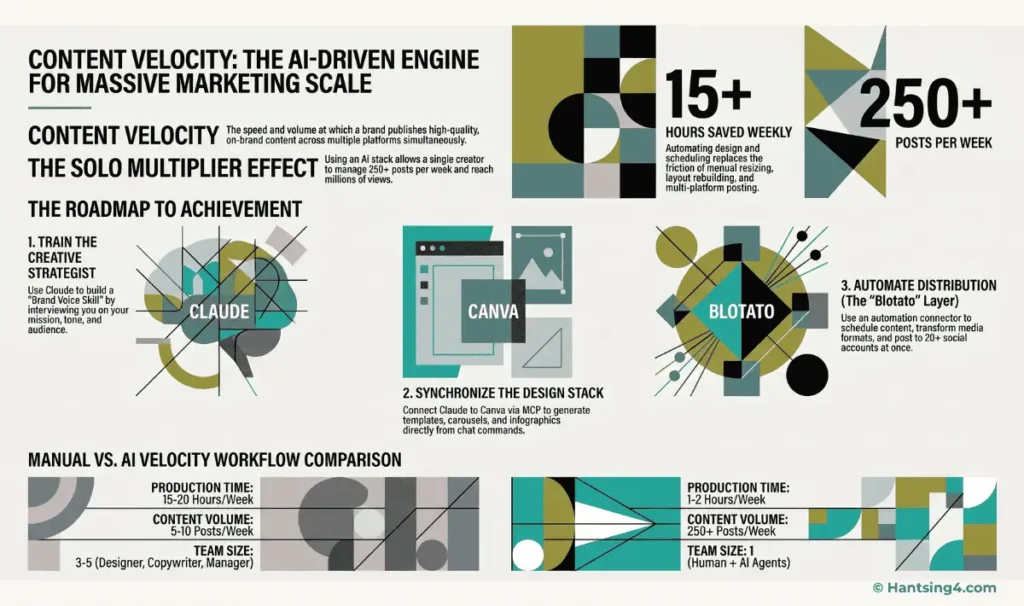
- The core stack is Claude for drafting and orchestration, Canva for visual layouts, and Blotato for scheduling across nine platforms (X, Instagram, LinkedIn, TikTok, YouTube, Threads, Facebook, Pinterest, and Bluesky), connected through Model Context Protocol (MCP).
- None of these tools run on their own. The Canva and Blotato connectors only act while you’re in an active Claude conversation, so “batching” still means you sitting down and running the session, not a background process that works while you sleep.
- Realistic starting cost is around $49 to $69 a month: Claude Pro at $20/month, Blotato’s Starter plan at $29/month (up to 20 connected social accounts and 1,250 monthly AI credits), and Canva Pro (roughly $12 to $18/month depending on billing cycle) if you need brand-kit templates.
- Expect your first one or two batching sessions to take longer than a normal week of ad-hoc posting while you build your prompts and templates. The time savings show up from the third or fourth session onward; one documented solo workflow reports an 85 percent drop in production time once the system is running.
What Does “Batching” Actually Mean With AI Tools?
Batching means producing a full cycle of content, a week or a month’s worth, in one dedicated work session rather than creating each post the day it goes out. It is not a new idea; podcasters and newsletter writers have batched for years. What changes with an AI stack is how much of the mechanical work inside that session can be handed off. The pressure behind this is not going away either: Sprout Social’s 2026 research found that a large majority of consumers now expect ongoing brand activity on social platforms, which keeps the volume problem live for a solo operator competing against teams with dedicated designers and schedulers.
In a manual workflow, batching still means you personally resizing every graphic, rewriting each caption for platform tone, and clicking through five separate scheduling dashboards. In a Claude-orchestrated workflow, you describe the batch in a conversation, Claude drafts copy and briefs the visuals, Canva builds the layouts, and Blotato queues the posts. The session is still yours to run. What moves is the ratio of thinking time to mechanical time inside it.
This distinction matters because a lot of AI marketing content implies a “set it and forget it” outcome. That is not accurate here. You are still the one who opens the chat, states the goal, and reviews the output before it goes live. What you’re trading away is retyping the same caption five times and manually dragging layers around a canvas.
What Each Tool in the Stack Actually Does, and What It Costs
Three tools cover the core loop, and each has a distinct, non-overlapping job. Understanding the division of labor matters more than any individual feature, because it tells you where a stuck workflow is actually breaking.
| Tool | Job in the workflow | Account requirement |
|---|---|---|
| Claude | Drafts captions, briefs visual specs, and orchestrates the other two tools through connected apps | Claude Pro or higher to use connectors reliably at volume |
| Canva | Builds and resizes the actual visual layouts from Claude’s brief or an existing template | Free plan works for basic resizing; Canva Pro needed for brand kits and premium templates |
| Blotato | Holds your connected social accounts and publishes or schedules the finished posts | Paid plan required; there is no free tier for API/MCP access |
Blotato’s pricing is tiered by connected account count and AI credits rather than a single flat rate, and it is worth knowing the actual tiers before you commit to one:
| Plan | Price | Connected accounts | Monthly AI credits |
|---|---|---|---|
| Starter | $29/month | Up to 20 | 1,250 |
| Creator | $97/month | Up to 40 | 5,000 |
| Agency | $499/month | Higher, multi-brand | 28,000 |
Realist guardrail: every plan includes a 7-day free trial, but the API and MCP connection Claude needs is off during that trial and activates only once you generate an API key, which starts your paid Starter subscription immediately. For comparison, a traditional scheduler like Blotato is meaningfully cheaper than Buffer’s per-channel pricing once you are managing several accounts. Buffer bills roughly $5 to $12 per connected channel per month, so 20 channels on Buffer can run well past Blotato’s flat $29 Starter price, though Buffer works fine if you are not planning to run it through an AI agent.
The connection between Claude and the other two tools runs on Canva’s AI Connector and the Blotato MCP server, both built on the Model Context Protocol, an open standard that lets Claude call another application’s features directly inside a conversation. You are not writing code to connect them. You are authorizing an account connection once, the same way you would connect any app to a Google account.
How Do You Set Up the Batching Workflow?
Setup happens once and takes under fifteen minutes for the connections themselves, though building your first working prompt template usually takes longer. Three pieces need to be in place before your first batch session.
- Connect Canva: in Claude, go to Settings, then Connectors, find Canva, and authorize the connection to your Canva account. If your interface has been reorganized, look under your profile menu instead; Anthropic changes this navigation periodically.
- Connect Blotato: add it as a custom connector using the server address https://mcp.blotato.com/mcp, then paste in the API key from your Blotato account settings. Blotato requires a paid plan starting at $29 a month (the Starter tier, up to 20 accounts) before its API and MCP server activate.
- Lock a lean brand kit in Canva: one primary logo, one secondary mark, two fonts, two colors. A small, specific brand kit produces more consistent output than a large one with too many options for the AI to choose between.
A full step-by-step walkthrough of this connection process, including the permission choices, is covered in our beginner’s guide to connecting Claude to Canva and Blotato, which is worth reading first if you have not made these connections before.
Running Your First Batching Session
A batching session works best as one long conversation rather than several short ones, because Claude keeps context on your brand voice and goals for the whole thread. Plan for 60 to 90 minutes for your first session and expect it to shrink as your prompts get more specific.
Draft the week’s angles first
Start with topics and hooks in plain text before touching any visuals. Give Claude your content pillars, the platforms you’re posting to, and any specific proof points, offers, or announcements for the week. Review and edit this draft before moving to design; catching a wrong claim or an off-tone line here costs a sentence edit, not a redesign.
Brief the visuals against a real template
Rather than generating graphics from scratch every time, clone a Canva template you like, share its URL with Claude, and ask it to analyze the word count per section before swapping in your copy. This keeps the layout’s proportions intact instead of producing text that overflows a box built for something shorter.
Schedule as the last step, not the first
Once captions and visuals are approved, ask Claude to queue the batch into Blotato’s next available slots rather than fixed times. Check each post in Blotato’s dashboard before it goes live for the first few sessions; connector-based publishing occasionally applies the wrong aspect ratio for a platform, and it is your account, not Claude’s, that carries the consequence of a bad post.
Where This Workflow Breaks Down
An honest framework includes the failure points, not just the upside. Three limitations show up consistently for solo operators trying this stack.
- No true automation trigger. Both the Canva and Blotato connectors only respond inside a conversation you actively start. Independent testing of the Claude-Canva connector confirms this same limitation: no triggers, no background monitoring. If you want content to generate and post on a schedule without you opening Claude that day, this stack does not do that; you would need a separate automation platform layered on top.
- Generic output without a locked brand kit. Skip the brand kit setup and every batch will look like default AI output; this is the most common complaint from people who try the stack once and abandon it.
- Rendering and export limits on the free tiers. Canva’s free plan blocks background removal and one-click resizing, two features that matter a lot at batch volume. Budget for Canva Pro if you are producing more than a handful of graphics a week.
Building Your First Real Batching Cycle
The framework above works best treated as a starting checklist you adjust over two or three real sessions, not a fixed process to follow exactly on day one. Your first batch will take longer than you expect and will probably need a second pass on tone before anything goes live, and that is a normal part of getting a new system calibrated to how you actually write and design.
The pattern that tends to work is starting small: batch just one platform and one content pillar for your first session, get the connector setup and your prompt template solid, then expand to the full week once the mechanics feel familiar. Trying to batch everything at once in session one is the most common reason people give up on this workflow before it pays off.
What you get, once the system is running, is not a marketing department’s worth of output from one person. It is a smaller, more honest thing: fewer hours spent on the mechanical parts of content production, and more of your actual time going toward the posts and ideas that need a person’s judgment.
If you have not yet connected Claude to Canva and Blotato, our step-by-step beginner’s guide to setting up the connectors walks through the exact settings, permissions, and first prompts to get you from zero to your first working batch.
What Does the Human Role Look Like Once the Workflow Is Running?
The human role becomes final review, brand judgment, and anything that requires a real story or a genuine opinion, not execution. Practically, that means three things stay manual even in a fully connected workflow: approving copy before it schedules, catching anything that reads generically or off-voice, and supplying the specific details (a real client win, a real number, a real photo) that make a post credible instead of templated.
This is also where a quality gate earns its place in the workflow. Before anything reaches Blotato’s queue, it is worth running a short checklist: does this sound like you, is every claim actually true, does the call to action match what you can currently deliver. Skipping this step is how “AI slop”, generic, off-brand output that reads the same as everyone else’s AI-written post, ends up published under a real business’s name.